
Verification
The verification plugin makes new members pass a security check before their join is processed. Until a member verifies, Invite Tracker holds back everything that normally happens when someone joins: the invite isn't credited, no join message is sent and no auto roles are given. Once they verify, they get the verification role, lose any roles to remove, and their join is processed as usual.
Members verify with the Verify button on the verification panel, which Invite Tracker posts in a channel of your choice. Bots that join your server skip verification.
Verification Settings
Enabled
Verification is turned on and off with the Enabled switch at the top of the Verification settings section. While it is disabled, new members join without verifying.

WARNING
To enable verification you must select a panel channel and a verification role or at least one role to remove. After saving, click Send verification panel, otherwise members have no way to verify. The dashboard shows a notice while no panel has been sent.
Verification Level
The verification level decides which check members go through after clicking Verify on the panel. It gets more secure with each level.
There are 3 verification levels:
- Button: Clicking Verify is enough. This is the simplest verification method.
- Captcha: Invite Tracker shows the member a captcha image that only they can see. They type the distorted text after clicking Enter captcha. Members have 3 tries.
- Website: Invite Tracker gives the member an Open verification link to a secure verification page on the Invite Tracker website, where they solve an hCaptcha challenge. This offers the best protection against bots and raids, because the check happens in a real browser with hCaptcha's bot detection.

TIP
We recommend using the Website level, as it is the most secure way of protecting your server against bot accounts and raids.
If hCaptcha itself is ever unavailable, members are asked to try again instead of failing verification, so an hCaptcha outage never gets anyone kicked or banned.
WARNING
Panels sent by the Invite Tracker bot show a disabled ONLY verify on https://invite-tracker.com button as a reminder for your members. Invite Tracker never asks members to verify on any other website.
Verification Role
The verification role is the role granted to members once they verify. Auto roles are given at the same time.

The verification role is optional when roles to remove are set on a Premium server.
WARNING
Only roles below Invite Tracker's highest role can be selected. Make sure the Invite Tracker bot role is above the role you want to give.
Roles to Remove
Premium feature
Removing roles on verification requires Invite Tracker Premium.
Roles to remove are taken away from members once they verify, instead of (or on top of) granting the verification role. Use them when new members get a role such as Unverified when they join, for example from Discord's onboarding or another bot, that hides the rest of your server until they verify. You can select up to 10 roles, and a role can't be both the verification role and a role to remove.

WARNING
Like the verification role, only roles below Invite Tracker's highest role can be selected, and Invite Tracker needs the Manage Roles permission to remove them.
DANGER
If your Premium ends, roles to remove are no longer removed, so members who verify keep them. If your server relies on them (an Unverified role, for example), select a verification role that grants access before your Premium ends. You can still take roles off the list without Premium, but you can't add new ones.
Timeout Action
The timeout action decides what happens to a member who doesn't verify within the verification timeout, or who fails verification (for example by running out of captcha tries).
There are three timeout actions:
- Kick: The member is kicked from the server.
- Ban: The member is banned from the server.
- No action: Nothing happens, and there is no time limit. The member stays unverified and can press Verify on the panel again whenever they want. With the Website level, a verification link expires after 3 days; pressing Verify again gives them a new one.

INFO
Every server's default timeout action is Kick.
DANGER
Be careful when using the Ban option. It is generally not recommended.
Verification Timeout
The verification timeout is the number of seconds a new member has to verify before the timeout action is applied. This setting is hidden when the timeout action is No action.

TIP
Members need time to verify, so set the verification timeout accordingly. The default of 180 seconds should be sufficient for most cases.
WARNING
The verification timeout must be between 15 and 1800 seconds.
Verification Panel
The Verification panel section controls the message with the Verify button that members use to verify.
Panel Channel
The panel channel is the channel where the verification panel is sent. Pick a channel that new members can see before they are verified.

WARNING
Remember to give Invite Tracker the correct permissions so it can post the verification panel.
Send Panel
Click Send verification panel to post the panel in your panel channel. The button only works while verification is enabled, and only after your settings have been saved.

INFO
Send the panel again after you change the panel channel or the custom embed, so the panel in your server shows your latest settings.
If Invite Tracker can't send the panel, grant it the permissions to view and send messages in that channel.
Custom Embed
Premium feature
The custom verification embed requires Invite Tracker Premium.
By default, the panel shows a Verification Required embed. Turn on Custom embed to design your own embed in the Verification embed editor, with a live preview next to it.
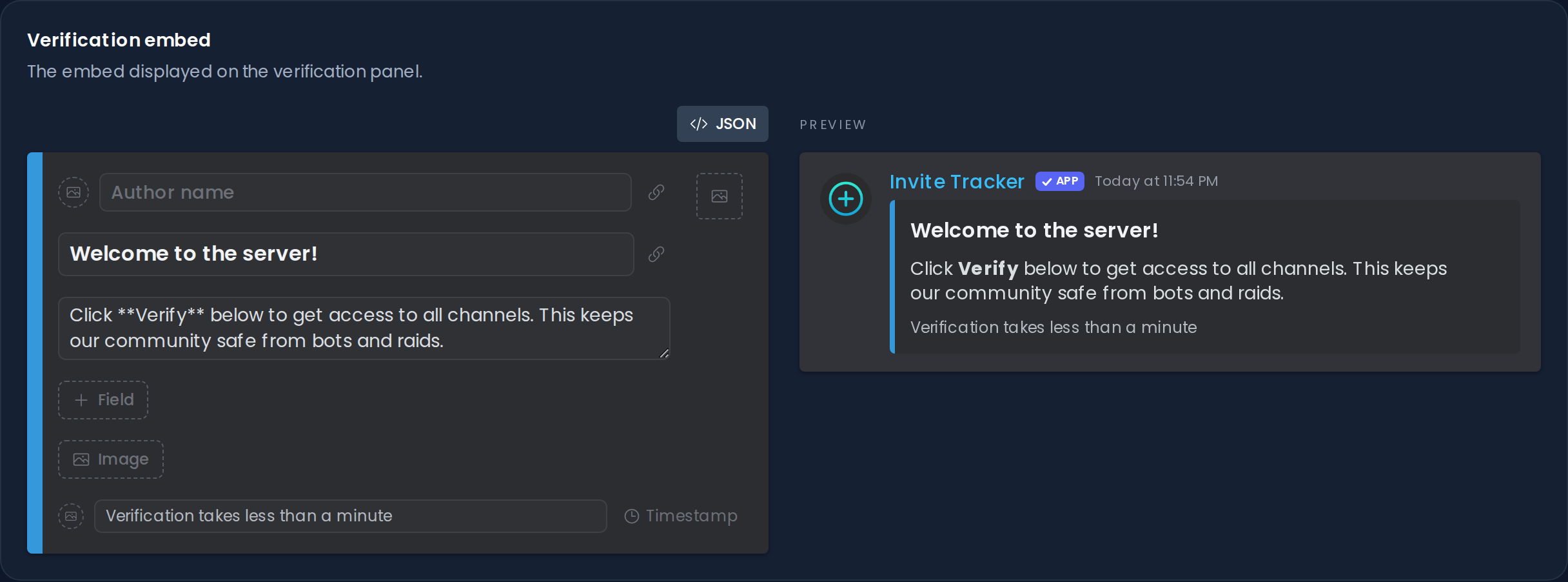
The new embed is used the next time you click Send verification panel.
Verification Logs
Verification logs are messages sent by Invite Tracker to a channel of your choice, telling you whether new members verified successfully, failed verification, or didn't verify in time.
To use them, turn on Enabled in the Verification logs section and pick a Logs channel.

WARNING
If Invite Tracker can no longer post in the logs channel, for example because the channel was deleted or the permission was removed, the logs channel is cleared and you need to select one again.
Older Verification Setups
If your server set up verification before the verification panel existed, the page shows a notice that the server still uses the legacy verification flow. Saving the page switches your server to the panel flow. Send a verification panel right after, so new members can verify.