
Giveaways
The giveaway plugin lets you create and manage giveaways in a very intuitive way, with a full overview of your running, scheduled and ended giveaways.
A tutorial video on how giveaways work and how to set them up. It shows an older version of the dashboard, so some menus look different.
WARNING
Free servers can only have a maximum of 5 running giveaways at the same time.
Premium servers can have up to 50 running giveaways at the same time.
Creating a Giveaway
To start creating a giveaway, simply click the blue New button next to Running Giveaways. This opens the New giveaway menu.
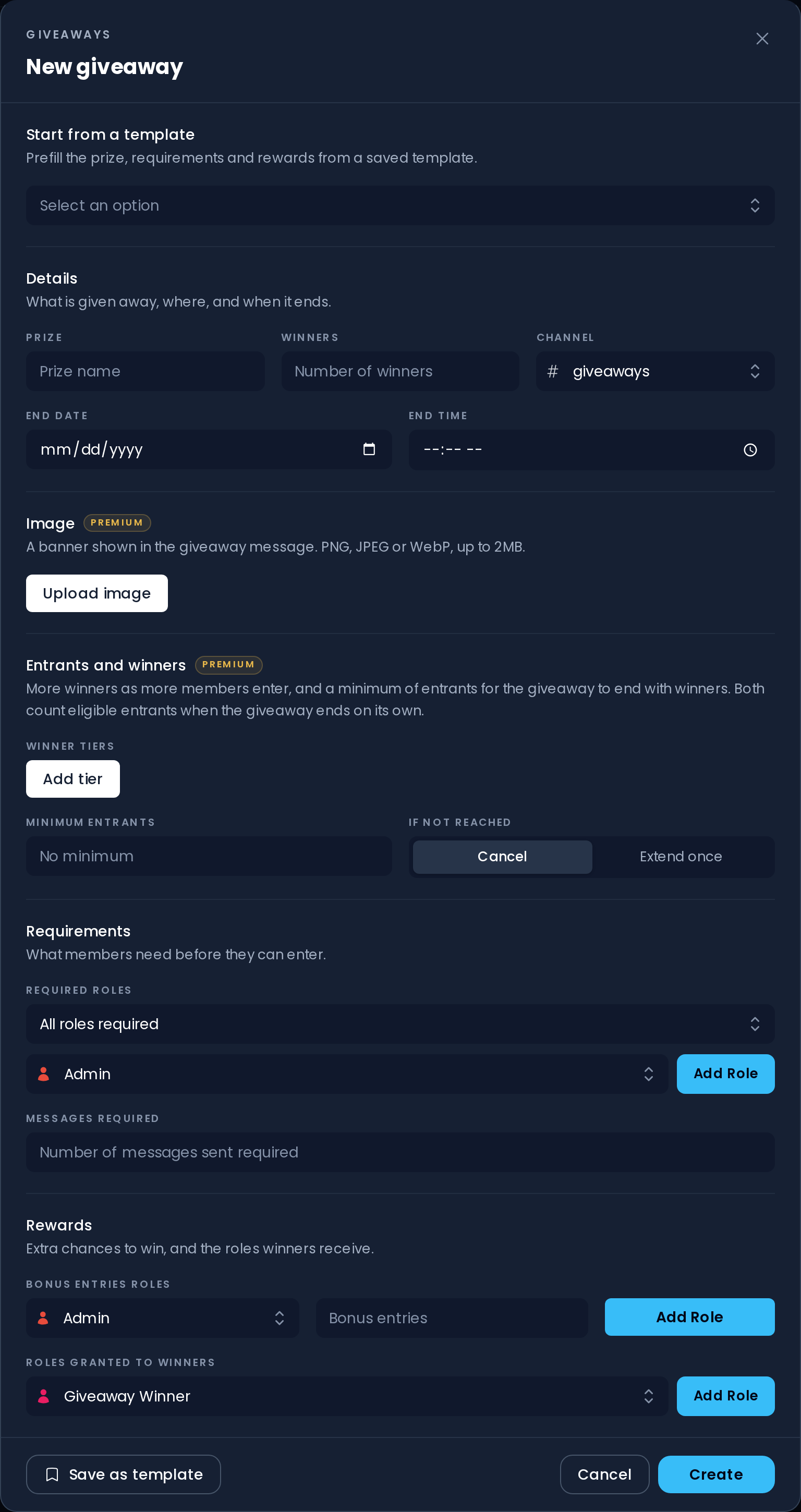
At first glance, it might look like a lot of very complicated stuff but do not worry. We will go through everything, section by section.
Start from a Template
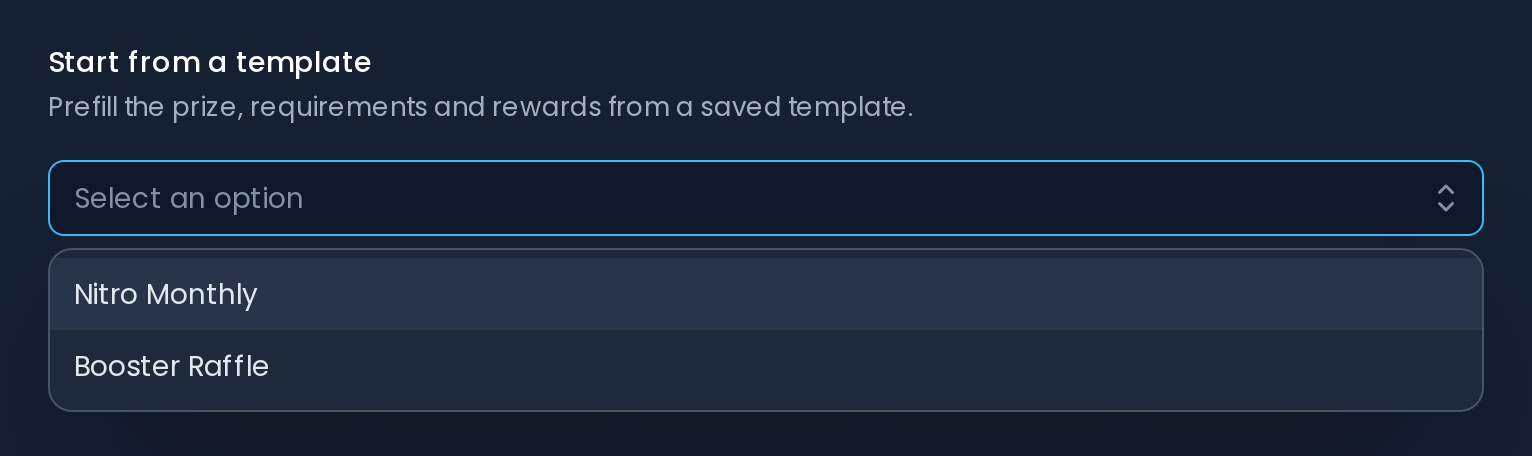
Under Start from a template, you can select one of your giveaway templates to fill in the prize, number of winners, image, winner tiers, minimum entrants, required roles, messages required, bonus entries roles and roles granted to winners. When using a template, you still have to fill in the End date and End time and select the giveaway channel before creating the giveaway.
TIP
Once a template is selected, the button at the bottom of the menu becomes Save edits to template: click it to save your changes to the form back into that template.
Prize, Winners and Channel
The Details section holds the basics of your giveaway:
- Prize is what you want to call your giveaway. We recommend you include the prize of the giveaway in the name.
- Winners is how many winners you want for your giveaway. Invite Tracker will select that number of winners when the giveaway ends.
- Channel is the channel the giveaway is sent in. Simply click the box and choose the channel.

WARNING
The prize can be up to 190 characters long.
Without Premium, a giveaway can have up to 20 winners. With Premium, it can have up to 100 winners.
End Date and Time
The End date box is where you choose the day the giveaway ends. The date format is shown in the box and follows your browser's language (for example mm/dd/yyyy). You can also click the little calendar icon on the right side of the box to pick the day from an interactive calendar.
The End time box is where you choose the time the giveaway ends. The clock format also follows your browser's language. You can also click the little clock icon on the right side of the box to pick the time from an interactive time selector.

INFO
The giveaway ends at the configured time in your time zone.
WARNING
Without Premium, a giveaway can last up to 31 days. With Premium, it can last up to 3 months.
Image
Premium feature
Giveaway images require Invite Tracker Premium.
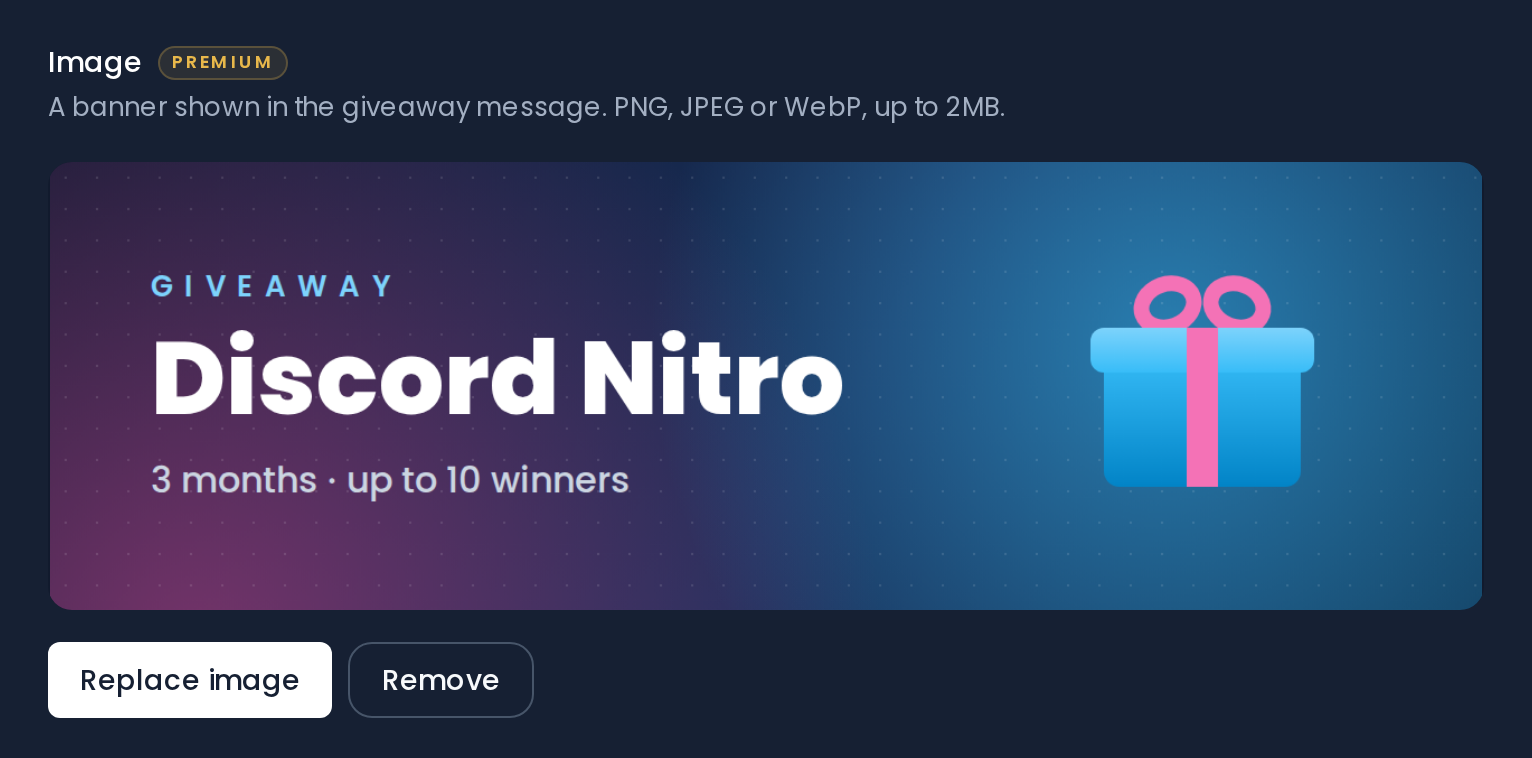
The Image is a banner shown in the giveaway message. Click Upload image to choose one; a preview appears in the menu. Click Replace image to pick another one, or Remove to take it out of the giveaway.
WARNING
The image must be a PNG, JPEG or WebP file of up to 2MB and at most 4096 × 4096 pixels.
Entrants and Winners
Premium feature
Winner tiers and a minimum of entrants require Invite Tracker Premium.
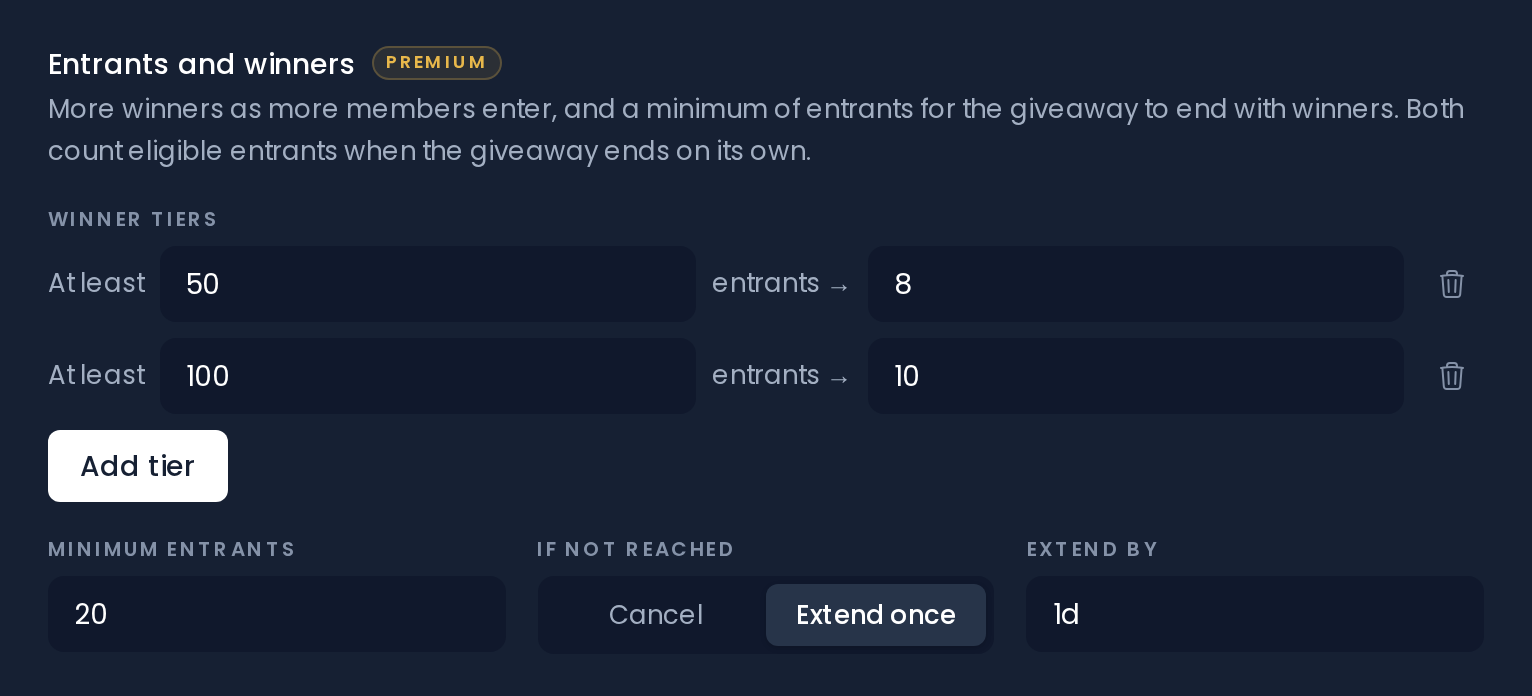
Winner tiers give your giveaway more winners as more members enter. Click Add tier, then fill in how many entrants are needed and how many winners the giveaway should have once it reaches them. In the example above, the giveaway draws 8 winners once at least 50 members have entered and 10 winners once at least 100 have. Below the lowest tier, the normal number of Winners from the details is used. Click the trash icon next to a tier to remove it.
Minimum entrants is the number of entrants the giveaway needs to end with winners. Leave it empty if you don't want a minimum. Under If not reached, you choose what happens when the giveaway ends with fewer entrants:
- Cancel: the giveaway ends without any winners and its message says that not enough members entered.
- Extend once: the giveaway keeps running for the time set in Extend by (for example
1d 12h). Invite Tracker announces the extension in the giveaway channel. If the minimum still isn't reached at the new end, the giveaway is cancelled.
The giveaway message shows its winner tiers and minimum entrants so members know what to expect.
INFO
Both only count eligible entrants: members who still meet the giveaway's requirements and are still in the server when the giveaway ends.
The minimum only applies when the giveaway ends on its own. If you end a giveaway early yourself (see Ending a Giveaway), the winners are drawn even if the minimum isn't reached. Winner tiers still apply.
WARNING
You can have up to 3 winner tiers, each with a different number of entrants. A tier can have up to 100 winners.
The extension must be between 1 minute and 31 days.
Required Roles
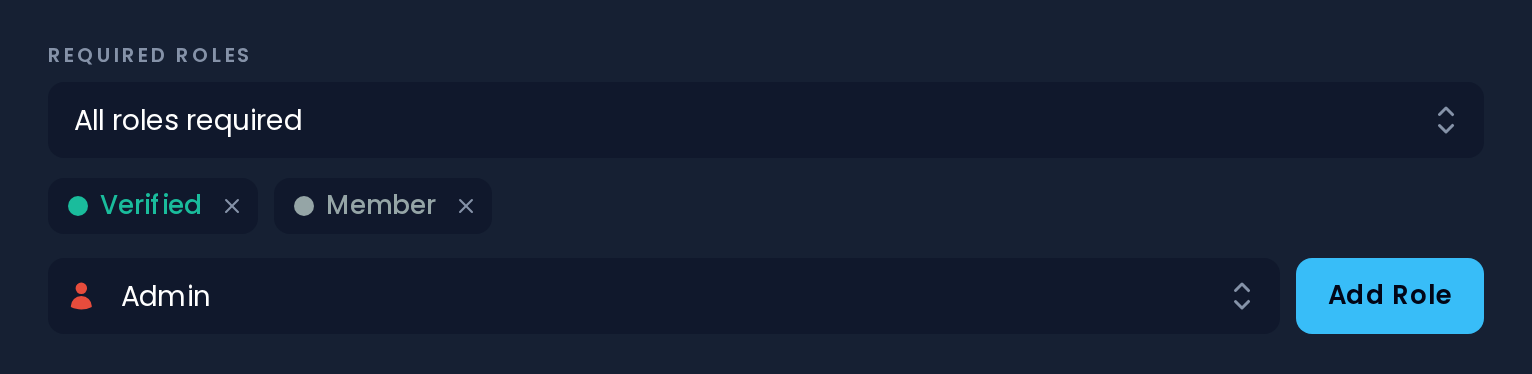
In the Requirements section, Required roles lets you choose between All roles required and Only one role required: members need to have all of the selected roles, or just one of them, to enter. Pick a role and click Add Role to add it.
WARNING
A giveaway can have up to 10 required roles.
Messages Required
Messages required is the number of messages a member needs to have sent in the server to be able to enter the giveaway. Leave it empty if you don't want a message requirement.

INFO
Only numbers can go here. Members who haven't sent enough messages can't enter the giveaway.
Bonus Entries Roles and Roles Granted to Winners
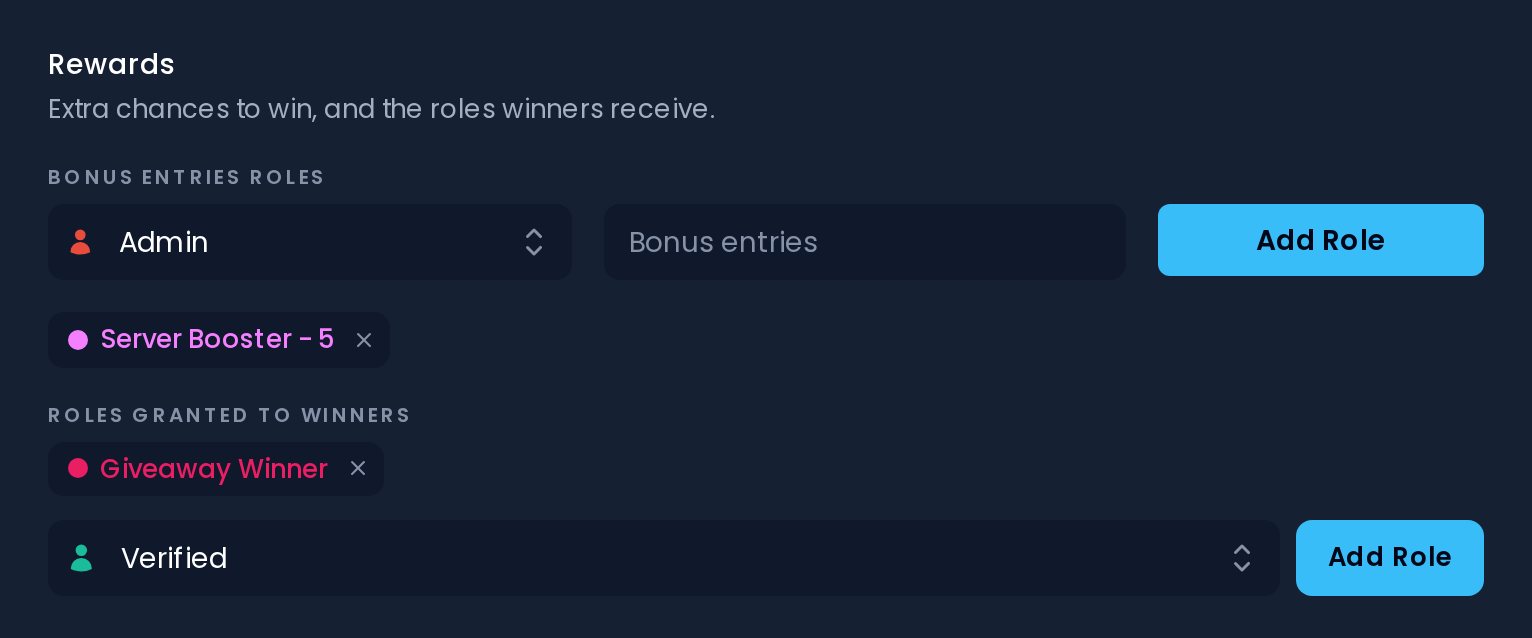
The Rewards section gives extra chances to win, and roles to the winners:
- Bonus entries roles give members with these roles extra entries in the giveaway, so they have a higher chance of winning. Pick a role, fill in its number of Bonus entries, then click Add Role.
- Roles granted to winners are roles that are given to the winner(s) of the giveaway. Granting roles to winners is a Premium feature.
WARNING
Remember to fill in the number of bonus entries before clicking Add Role for a bonus entries role. A role can give up to 1000 bonus entries.
WARNING
Without Premium, a giveaway can have up to 10 bonus entries roles. With Premium, it can have up to 30.
A giveaway can have up to 10 roles granted to winners. Invite Tracker needs the Manage Roles permission and can only give roles that are below its own highest role.
An Example of a Giveaway
Below is an example of a filled in giveaway. In this giveaway, both the "Verified" and "Member" roles are required to enter, and members need to have sent at least 50 messages. The "Server Booster" role gives 5 bonus entries and the "Giveaway Winner" role is given to the winners. The giveaway also shows a banner image, draws 8 winners instead of 5 once 50 members have entered and 10 once 100 have, and needs at least 20 entrants: if fewer have entered when it ends, it is extended once by 1 day (roles granted to winners, images, winner tiers and minimum entrants are Premium features).
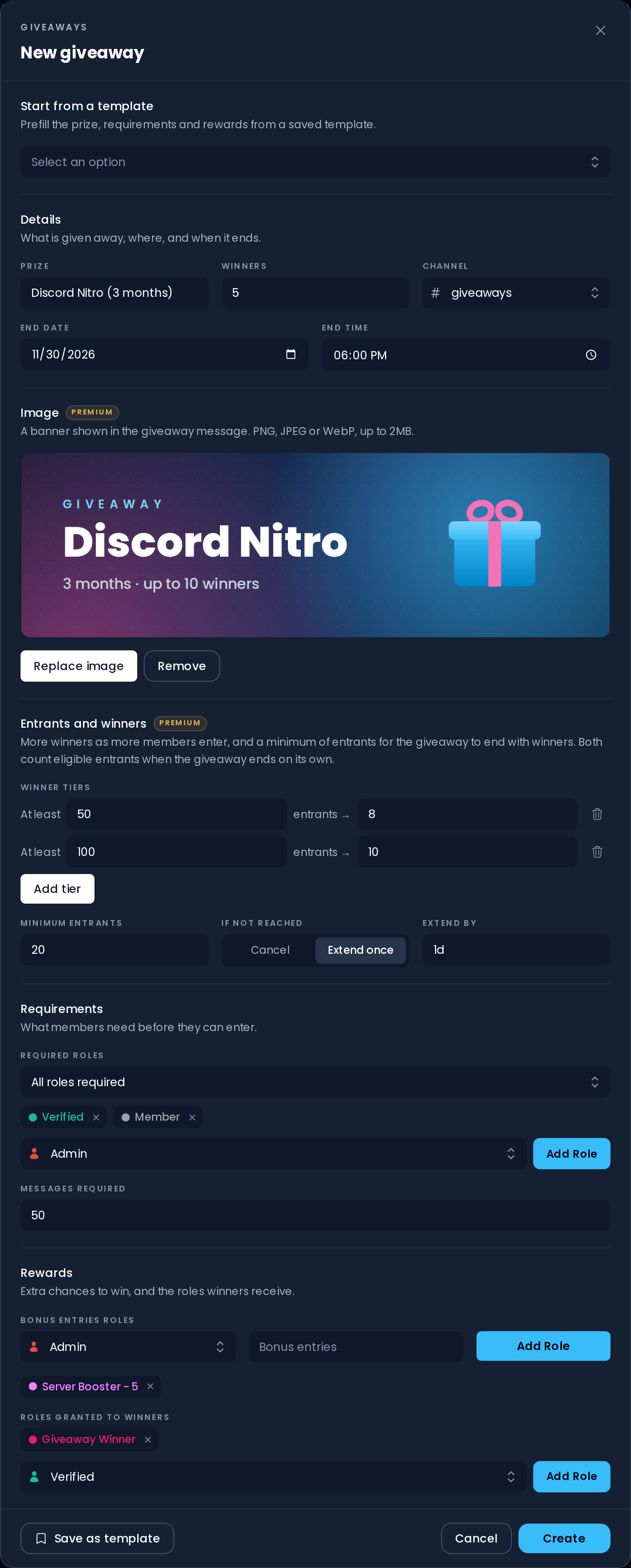
Now just click the blue Create button at the bottom of the menu and the giveaway is sent in the selected channel. If it isn't, check Invite Tracker's permissions first.
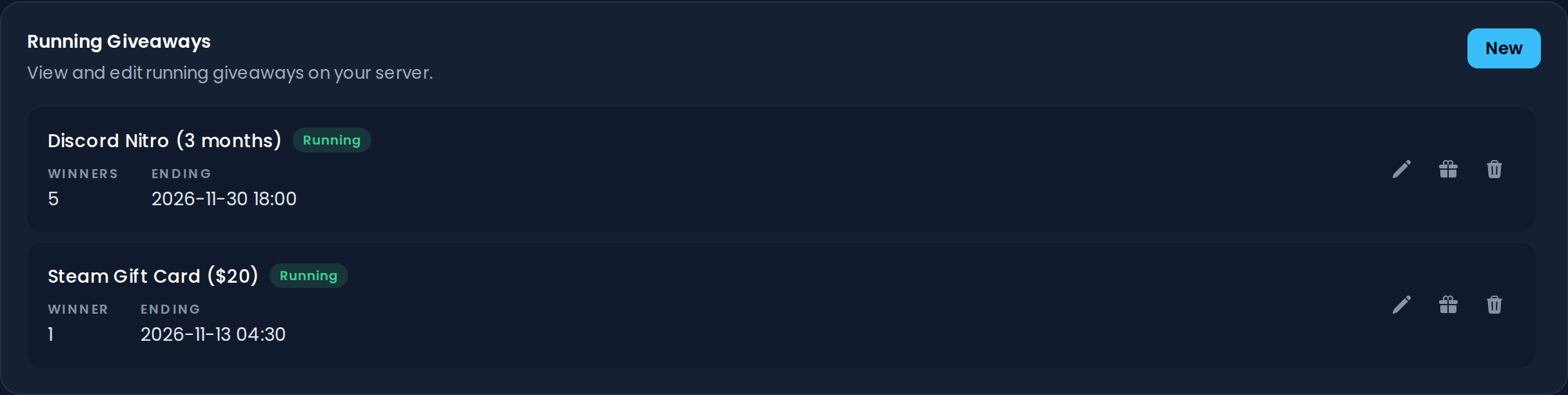
Back on the dashboard, the giveaway now shows up in the list of the server's Running Giveaways, with its number of winners and its end date.
Entering a Giveaway
Members enter a giveaway by clicking the Entry button under the giveaway message. Clicking it again asks them, in a reply only they can see, whether they want to leave: Leave Giveaway takes them out of the giveaway and Cancel keeps them in. The confirmation's buttons work for 15 minutes.
When a member enters, Invite Tracker replies with how many entries they have, only visible to them: 1 base entry, the bonus entries of each bonus entries role they have, and on free servers 1 extra entry if they voted for the bot (see How do giveaway "extra entries" work?). On free servers, the giveaway message also has a Vote for 1 Extra Entry button.
The Participants button lists everyone who entered the giveaway. At the top, it shows the member's own entries, or that they are not participating.
Scheduling a Giveaway
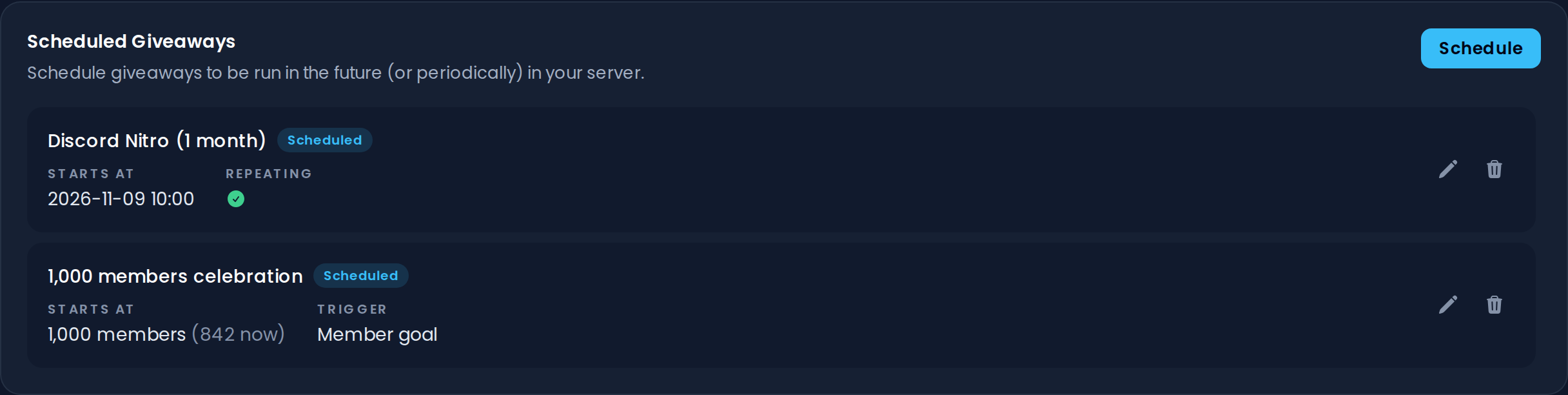
To schedule a giveaway, click the Schedule button next to Scheduled Giveaways and fill in the giveaway details from above.
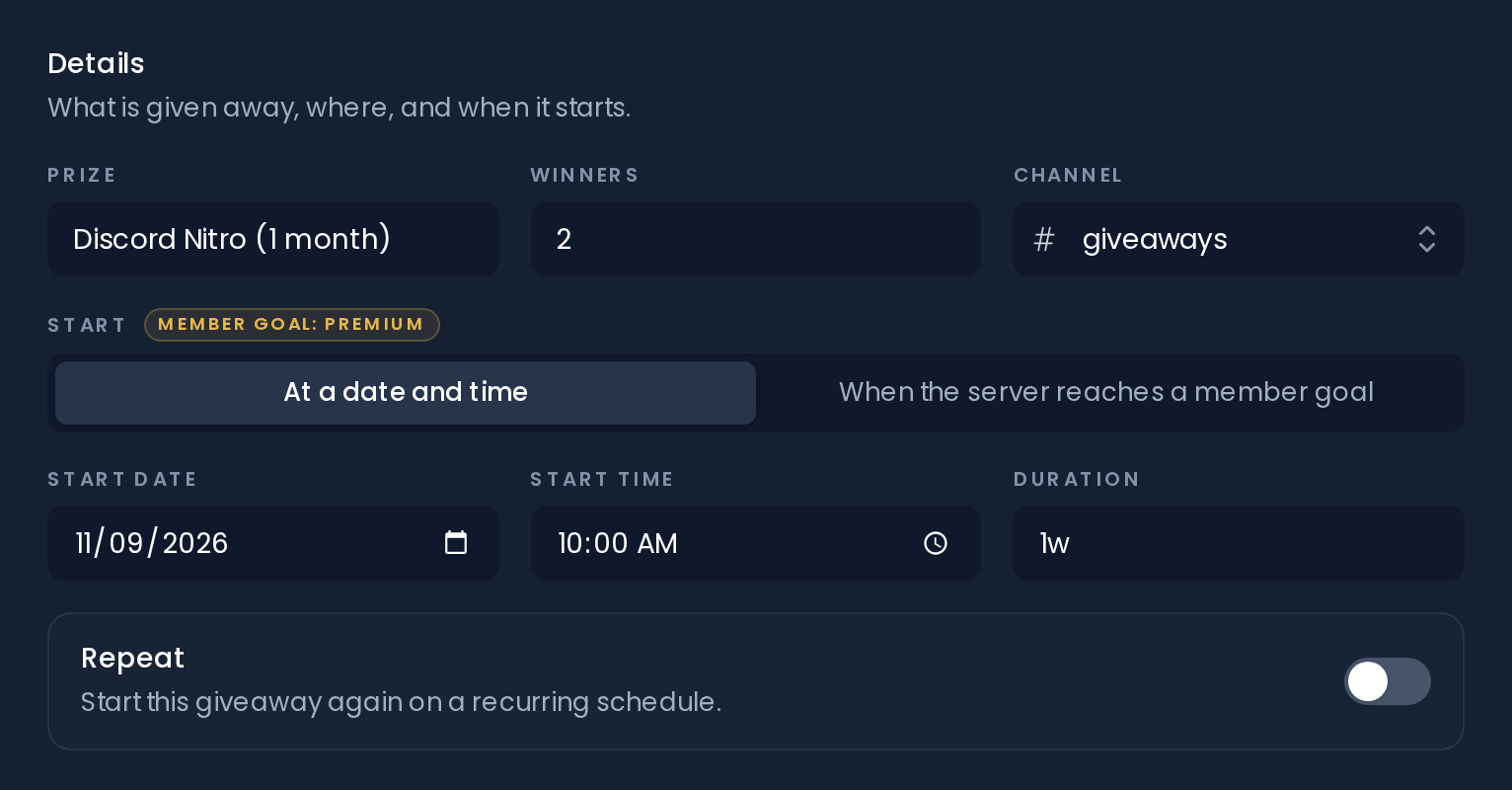
Unlike creating a normal giveaway, when you schedule a giveaway you choose when it starts and set a Duration (for example 1w or 3d 12h) instead of an end date. Under Start, choose At a date and time to start it at the Start date and Start time you fill in, or When the server reaches a member goal. Then click Schedule.
To change a scheduled giveaway, click the Pencil button next to it, make your changes and click Save changes. Click the Trash button to delete it.
WARNING
Free servers can only have 1 giveaway scheduled at a time.
Premium servers can schedule an unlimited amount of giveaways.
The duration follows the same limits as a normal giveaway: up to 31 days without Premium and up to 3 months with Premium.
Repeating a Giveaway
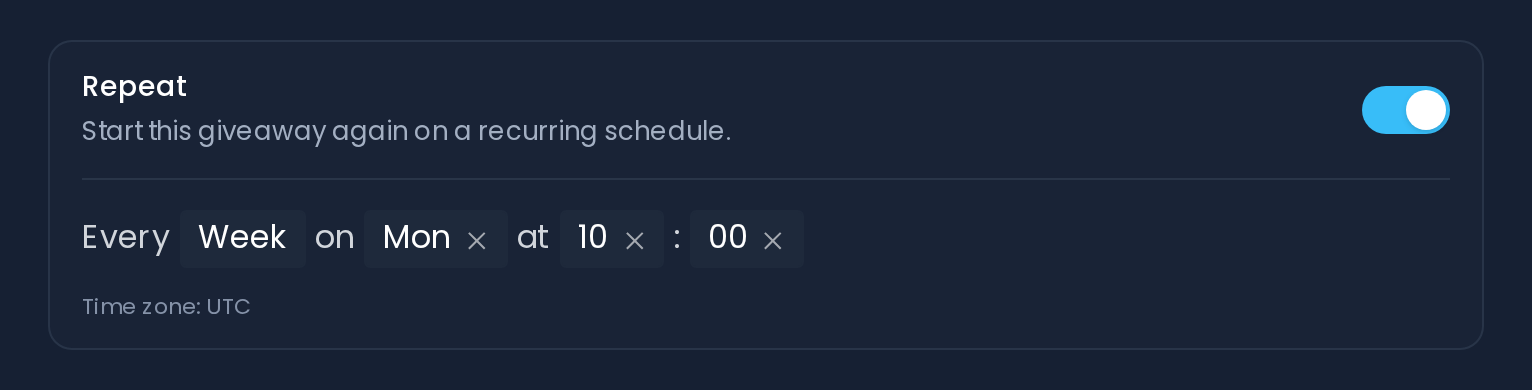
If you would like your scheduled giveaway to repeat, turn on the Repeat switch and select how often it should start again (for example every week on Monday at 10:00).
INFO
The repeat follows the time zone shown under it, which is your browser's time zone when you schedule the giveaway.
Starting at a Member Goal
Premium feature
Member-goal giveaways require Invite Tracker Premium.
A scheduled giveaway can also start when your server reaches a number of members, for example to celebrate your 1,000th member. Under Start, choose When the server reaches a member goal and fill in the Member goal. The menu shows how many members your server has right now.
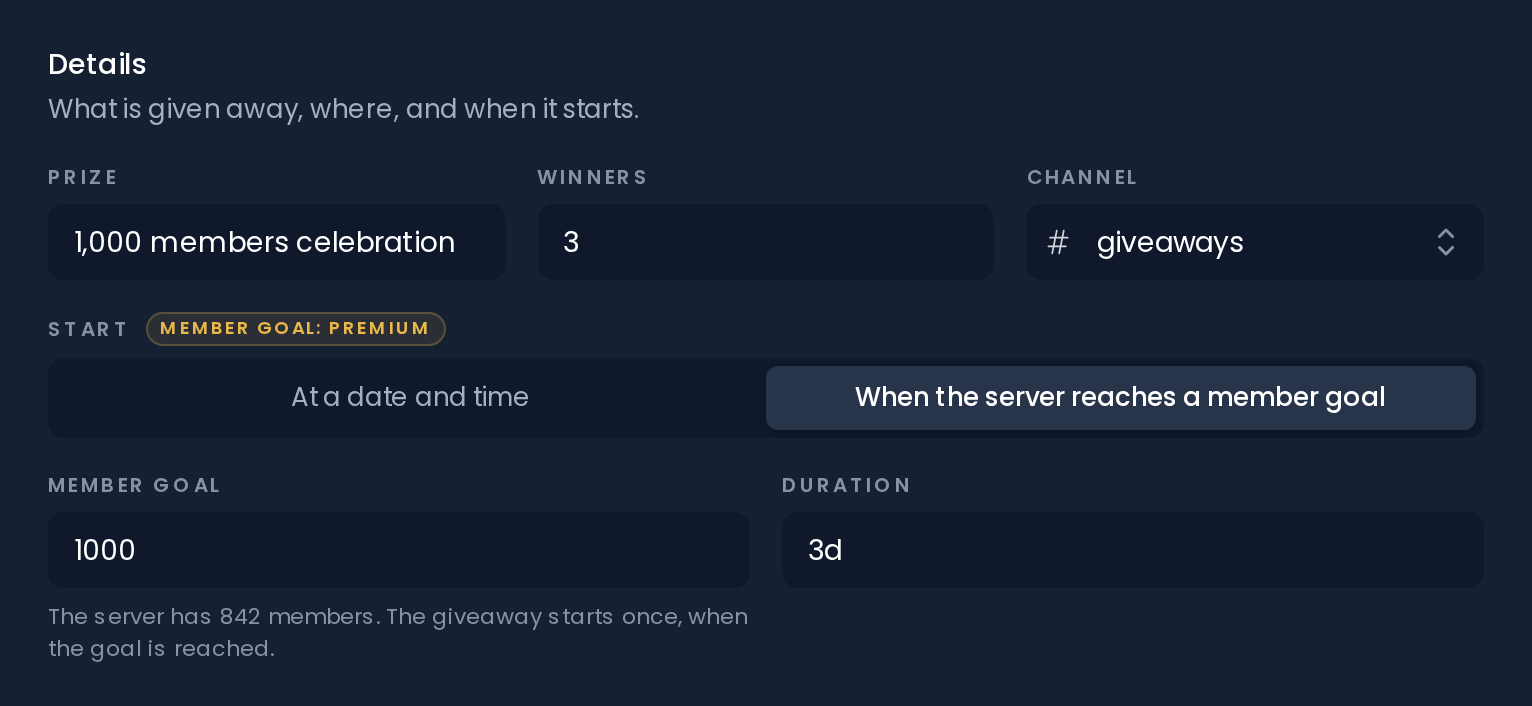
The giveaway starts once, as soon as the server reaches the goal, and then runs for the configured duration. In the list of scheduled giveaways, it shows the goal and the server's current member count.
WARNING
The member goal must be higher than your server's current member count. Member-goal giveaways can't repeat.
When a Scheduled Giveaway Can't Start
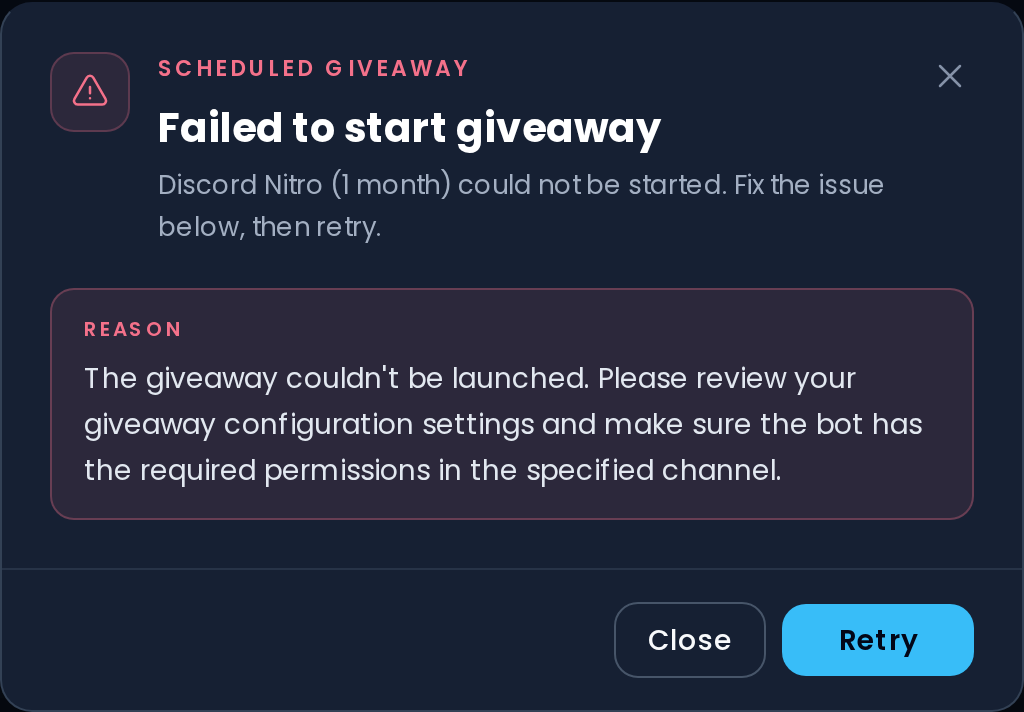
If a scheduled giveaway can't start (for example because Invite Tracker is missing permissions in the giveaway channel, or the server no longer has Premium for a Premium option), a red warning icon appears next to it in the list. Click it to see why, fix the issue, then click Retry.
Editing a Giveaway
Premium feature
Editing running giveaways requires Invite Tracker Premium.
To edit a running giveaway, click the Pencil button next to it under Running Giveaways. This opens the Edit giveaway menu, which is almost the same as the giveaway creation menu.
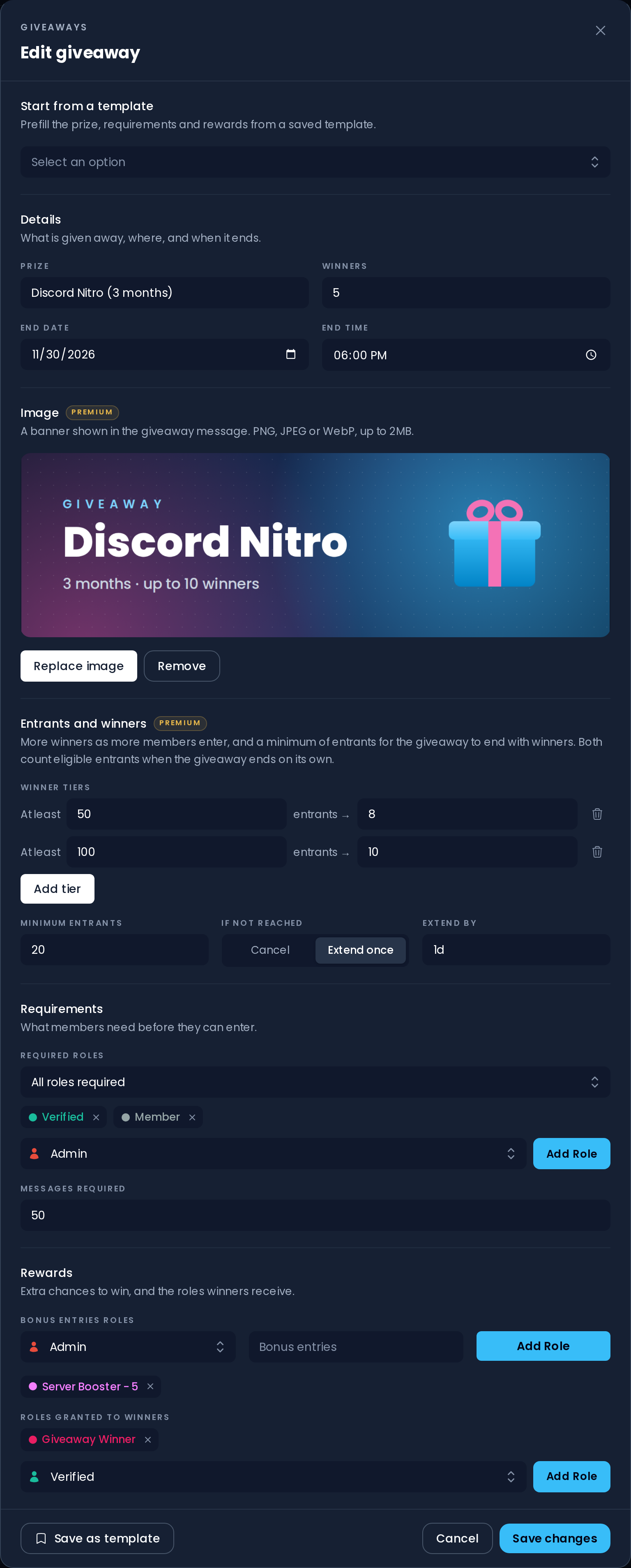
From here you can edit anything you like except the channel. After you save, Invite Tracker updates the giveaway message in your server.
For our giveaway, we will increase the required number of messages from 50 to 100.

Now click Save changes. If you check your server, you will see that the giveaway has changed.
Ending a Giveaway
To end a running giveaway early, click the Present button next to it under Running Giveaways. Invite Tracker draws the winners right away, even if the giveaway's minimum entrants isn't reached.
Deleting a Giveaway
To delete a running giveaway, click the Trash button next to it under Running Giveaways. The giveaway and its message are removed without drawing any winners.
Rerolling a Giveaway
Ended giveaways are listed under Ended Giveaways.
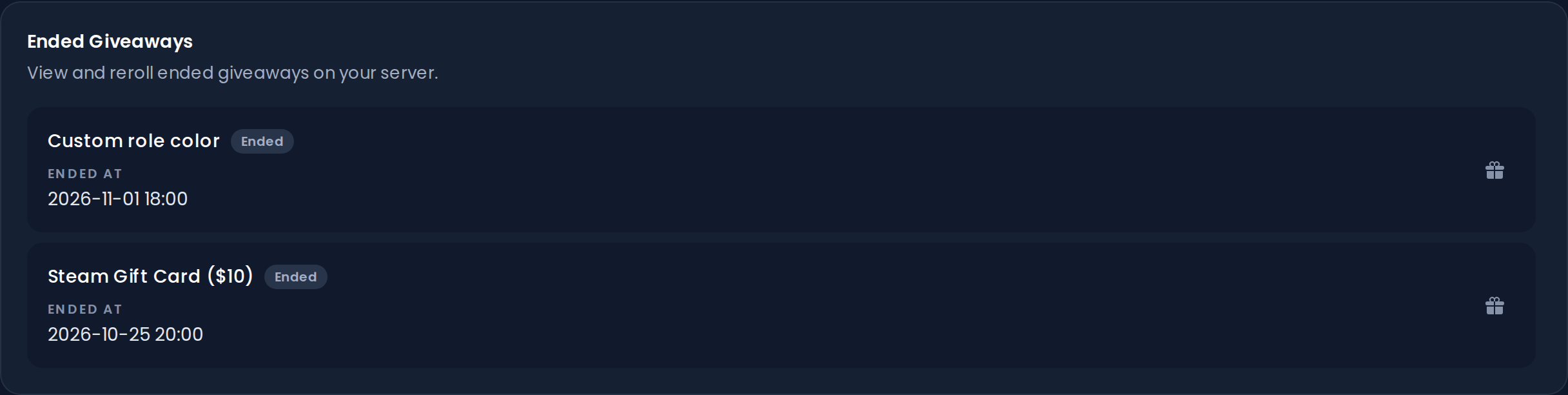
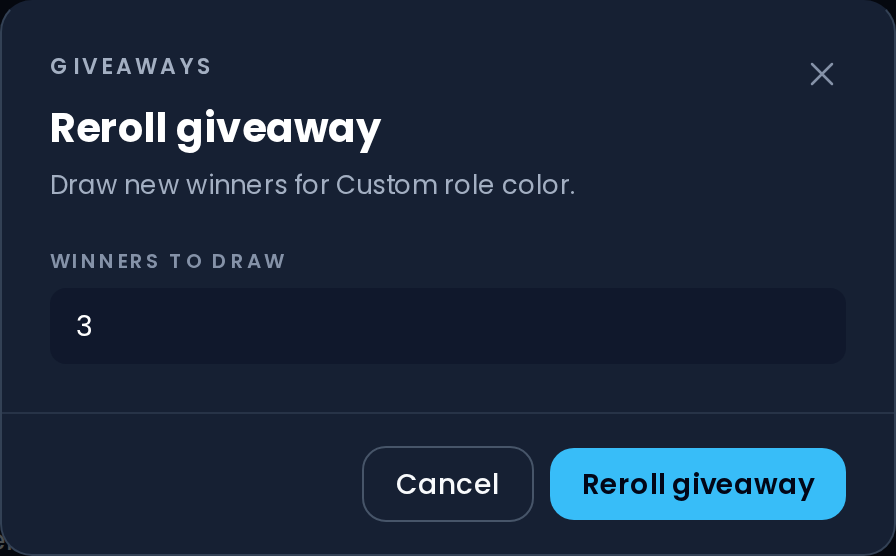
To reroll an ended giveaway, click the Present button next to it. This opens a menu where you choose the number of Winners to draw. It is filled in with the number of winners the giveaway ended with, which includes any winner tier it reached. Click Reroll giveaway to draw the new winners.
INFO
Members who left the server since the giveaway ended can't win a reroll.
Free servers keep their 10 most recently ended giveaways, and Premium servers their 50 most recent ones. Older ended giveaways can't be rerolled anymore.
Giveaway Roles
The Giveaways General Settings apply to every giveaway on your server:
- Giveaway Blacklisted Roles: members with any of these roles can't enter any giveaway.
- Giveaway Bypass Roles: members with any of these roles can enter any giveaway, even if they don't meet its requirements or have a blacklisted role.
- Giveaway Ping Roles: roles that get pinged whenever a giveaway starts. The mentions are sent together with the giveaway message.
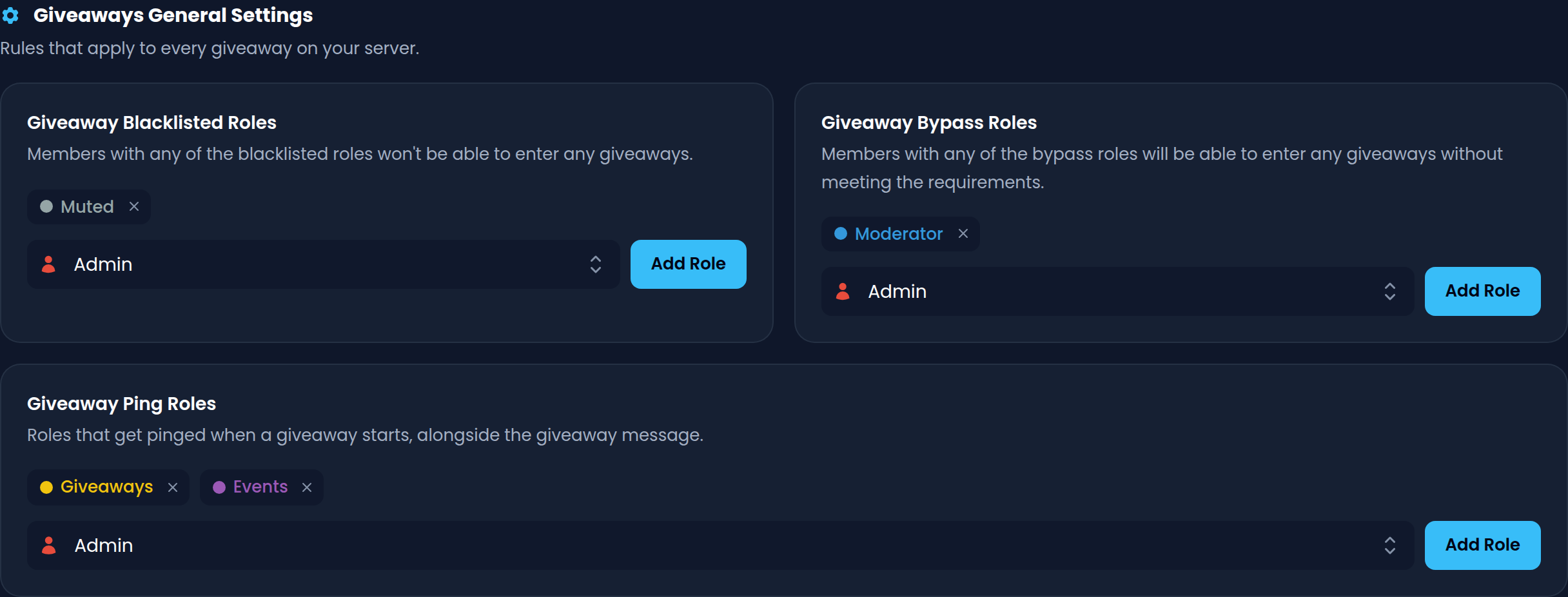
WARNING
Free servers can only have a maximum of 5 giveaway blacklisted roles, 5 giveaway bypass roles and 1 giveaway ping role.
Premium servers can have an unlimited amount of giveaway blacklisted roles and giveaway bypass roles, and up to 25 giveaway ping roles.
INFO
A ping role only notifies its members if the role is mentionable or Invite Tracker has the Mention @everyone, @here and All Roles permission in the giveaway channel. Otherwise the mention is still shown but nobody gets notified.
Giveaway Templates
Giveaway templates let you quickly create or schedule giveaways without having to fill in all the details every time.
To create a template, click the Create button next to Templates under Templates Management. Your templates are listed there with their prize and number of winners; click the Pencil button next to a template to edit it, or the Trash button to delete it.
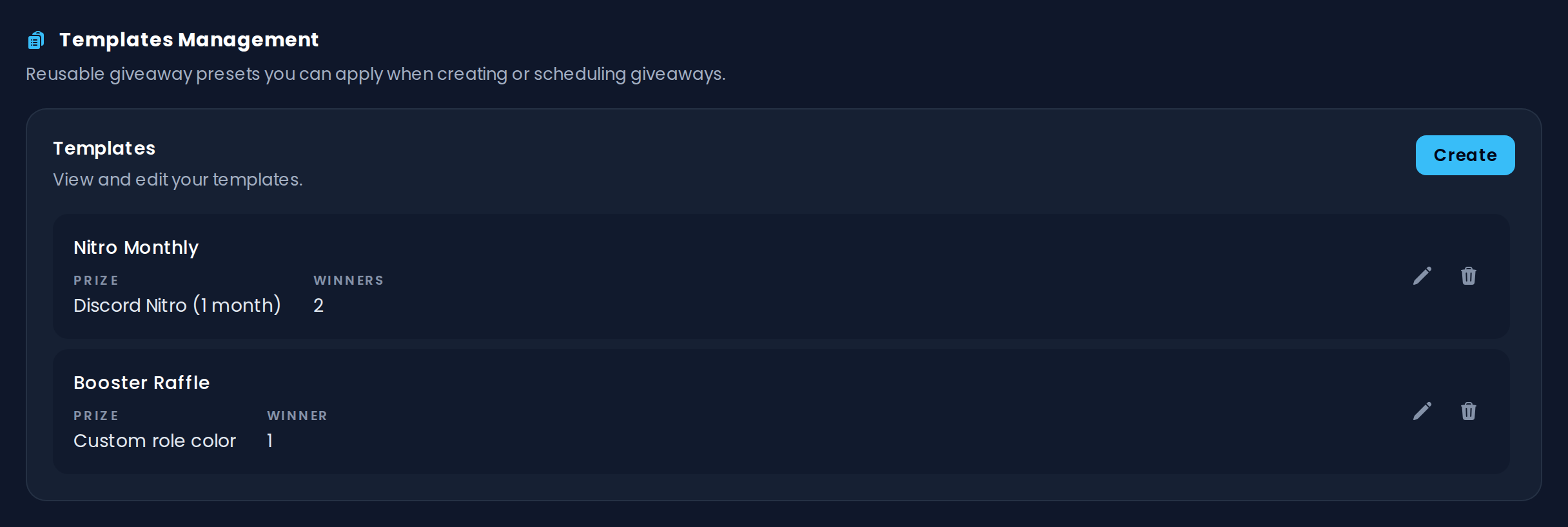
When creating a template, give it a Name (up to 30 characters) and fill in the details you want to reuse: the prize, number of winners, image, winner tiers, minimum entrants, requirements and rewards. Templates don't save a channel or an end date. When you are finished, click Create.
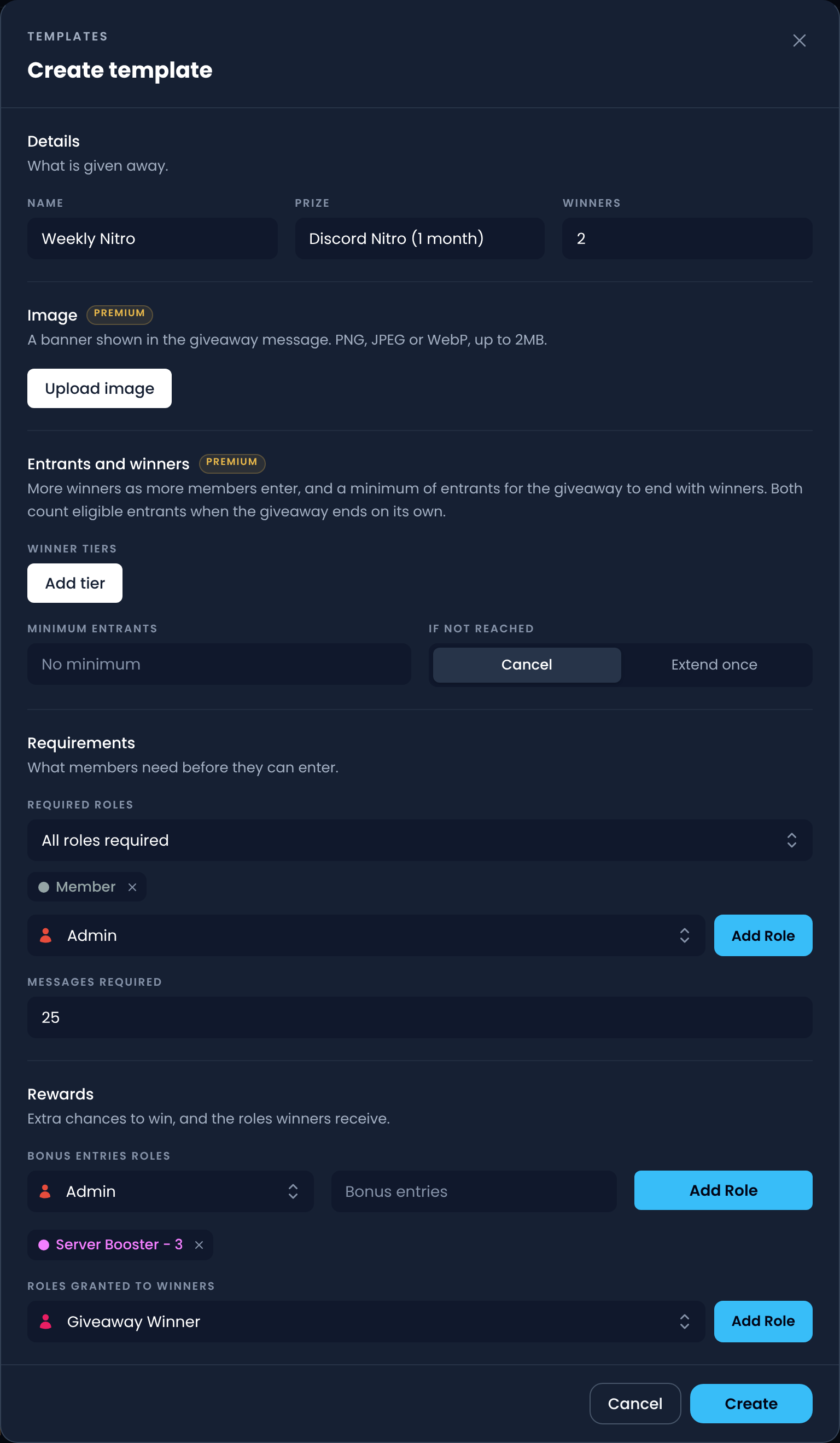
WARNING
Free servers can only create 1 giveaway template.
Premium servers can create an unlimited amount of giveaway templates.
You can also save a template while creating or scheduling a giveaway: fill in the giveaway, then click Save as template at the bottom of the menu and choose a name.

TIP
After creating a giveaway with the /giveaway create command, you can also click Save as Template under Invite Tracker's reply to save it as a template.