
Dashboard
The explanation on how to use Invite Tracker's dashboard.
Introduction
If you are looking to use Invite Tracker's dashboard instead of its commands, then you have come to the right place! The dashboard is very feature-rich with even some dashboard-exclusive features.
We will be teaching you everything like how to log in, view your server list and edit your server's settings, alongside explaining every feature in a very understandable way with an excessive amount of images so you do not get lost.
Finding The Website
Found it! Here it is: https://invite-tracker.com
Accessing The Dashboard
- Open the website and click Login at the top right of the page.
- Once you are logged in, click Dashboard at the top right of the page to open your server list.
- Click Configure on the server you want to set up.
INFO
When clicking Login, you will be prompted with a login screen. Please log in using your Discord account.
Do not worry about safety when logging in as you are logging through Discord's official site meaning we do not collect any private login information.
Your Server List
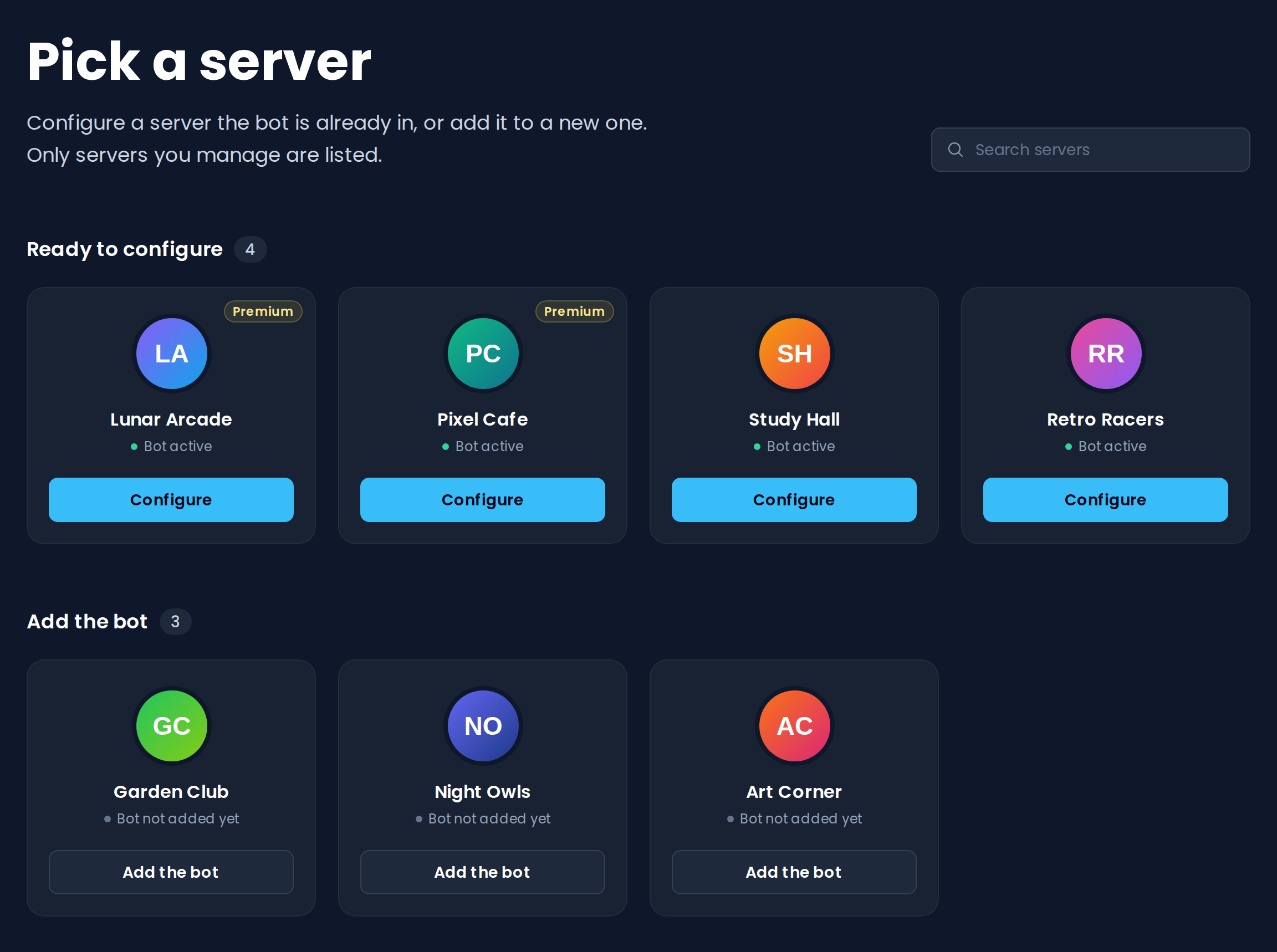
The server list shows every server where you have the Administrator permission. You can search for a server by name with the search box at the top right.
- Ready to configure lists the servers Invite Tracker is already in. Click Configure to open the server's dashboard.
- Add the bot lists the servers Invite Tracker is not in yet. Click Add the bot to invite Invite Tracker to that server.
Servers with Invite Tracker Premium are marked with a Premium badge.
Your Server's Dashboard
Opening a server takes you to its Join Messages page. The sidebar on the left lists every plugin, grouped into the Welcome, Invites, Engagement, Protection, Tickets and Settings sections (Custom Bot appears under Settings on servers that have one). The server name at the top of the sidebar takes you back to your server list so you can switch to another server, and the bottom of the sidebar shows your account with links to My Account and to log out. The Documentation link at the top right of every page opens this documentation.
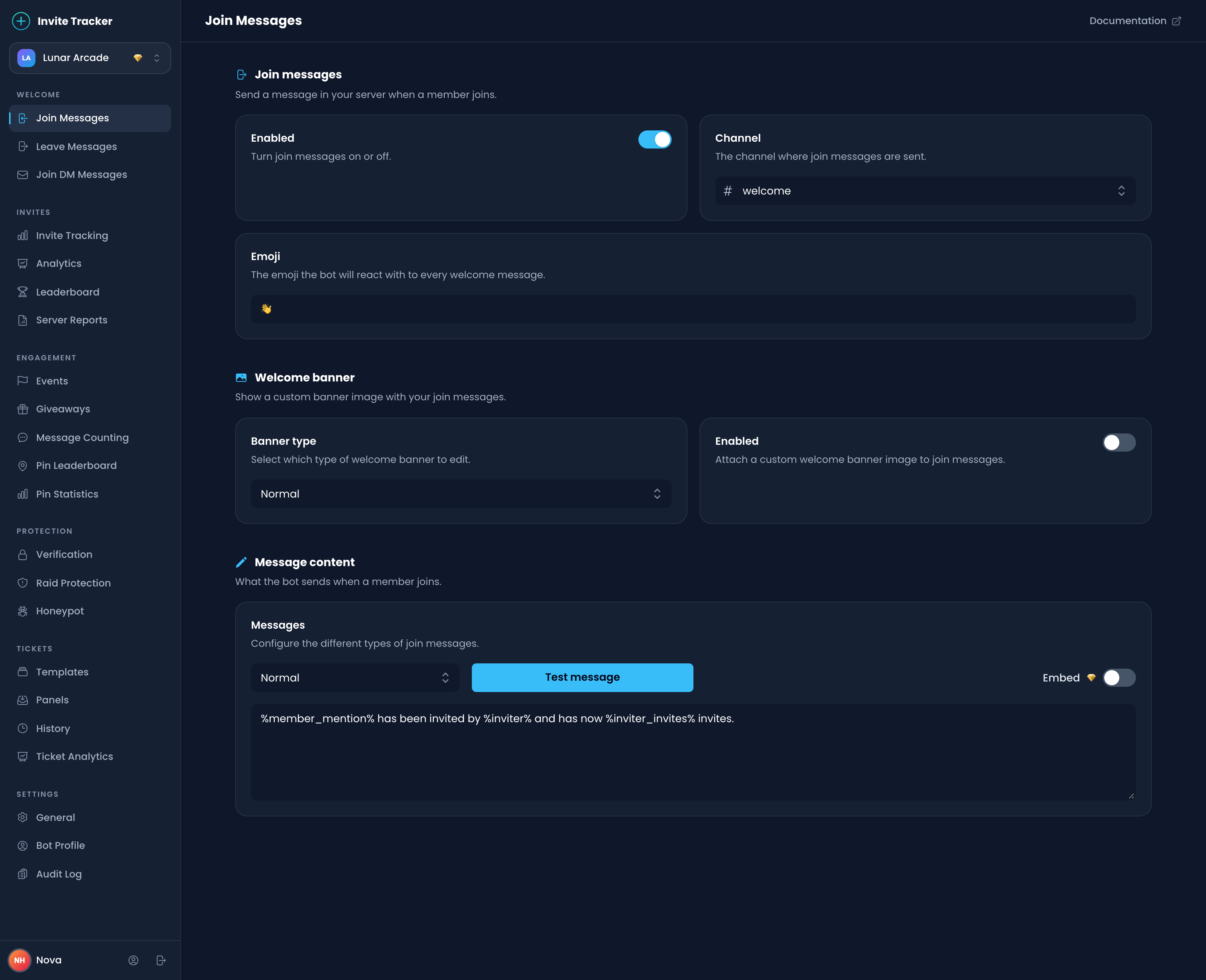
When you change a setting, an Unsaved changes bar appears at the bottom of the page. Click Save changes to apply your changes to your server, or Discard to undo them.
TIP
Plugins that require Invite Tracker Premium are marked with a gold diamond in the sidebar on free servers. Some pages are available on free servers too and only lock their Premium settings.
Premium settings, options and buttons are marked with a gold diamond. Hover it, or tap it on mobile, to see that the setting is a Premium feature and get a link to the Premium plans. The diamond stays on servers that already have Premium, so you can always tell which settings come with it.
Keep reading to find out which plugin does what.