
Invite Tracking
The invite tracking plugin lets you choose a fake delay for your server, decide whether rejoins count, blacklist users or roles, hide users from the leaderboard, log invites as they are created or deleted, and manage your Invite Labels. Its settings are split into four sections: Counting rules, Exclusions, Invite logs and Invite labels.
How Fake Invite Detection Works
When a new member joins your server, Invite Tracker checks how old their Discord account is. If the account was created within the number of days specified by your fake delay setting, the join is flagged as a "fake" invite.
Example: If your fake delay is set to 5 days and a 3-day-old account joins via someone's invite link:
- The inviter gains +1 regular invite (the join still counts)
- The inviter also gains +1 fake invite (flagging it as potentially fake)
- The inviter's total invite count uses the formula:
regular - left - fake + bonus
A join is also flagged as fake when a member joins through their own invite link, or when they rejoin your server while don't count rejoins is enabled.
This helps server owners identify inviters who may be using alt accounts or bots to inflate their invite counts.
Fake Delay
Premium feature
Customizing the fake delay requires Invite Tracker Premium. Every server otherwise uses the default value.
The fake delay of your server is the number of days old an account has to be when joining to not be counted as a fake invite. For example, if you set your server's fake delay to 5 days and an account that is 4 days old joins your server, the person who invited that account will gain a regular invite and a fake invite. The explanation of every invite type can be found here.
You can find it in the Counting rules section. Pick one of the presets (1 day, 3 days, 1 week or 2 weeks), or choose Custom to enter any number of days.

INFO
Every server's default fake delay is 3 days.
TIP
A good fake delay is 1 week: most alt accounts created to farm invites are only a few days old.
WARNING
A server's fake delay must be between 0 and 300 days.
Don't Count Rejoins
Also in the Counting rules section. By default, a member who leaves your server and later joins again grants their inviter a regular invite again. When don't count rejoins is enabled, members who have already been in your server before count as fake invites when they come back: the inviter gains a regular invite and a fake invite, exactly like a join from an account younger than the fake delay.

INFO
This option is disabled by default, so rejoins keep counting as regular invites until you enable it.
WARNING
Invite Tracker only detects rejoins it has witnessed. Members who joined and left your server before Invite Tracker was added are counted as first-time joins when they come back.
Rejoin detection is not affected by /resetinvites: a member who has been in your server before still counts as a rejoin after an invite reset.
Invite Blacklist
Found in the Exclusions section, this is where you invite blacklist members using their user IDs: type an ID and click Add User ID. Invite-blacklisted users' invites are not tracked by Invite Tracker and they do not gain any invites. Welcome/leave messages are not affected by this.

INFO
Information regarding how to get a user's ID can be found here.
WARNING
Free servers can only have a maximum of 3 invite-blacklisted users.
Premium servers can have a maximum amount of 100 invite-blacklisted users.
DANGER
Be careful not to blacklist the wrong users.
Role Blacklist
Premium feature
Blacklisting roles from gaining invites requires Invite Tracker Premium.
Also in the Exclusions section, this is where you blacklist entire roles from gaining invites: pick a role and click Add Role. Members with any of the selected roles do not gain any invites when someone joins through their invite links. Welcome/leave messages are not affected by this.
This is useful to keep staff, moderators, or bot-managed roles off the invite leaderboard without blacklisting each member one by one.

INFO
Whether a join grants an invite is decided by the roles the inviter holds at the time of the join. Nothing is changed retroactively: invites gained before a role was blacklisted are kept, and joins that were not counted are not granted back when the role is removed.
The blacklist can take a short moment to start applying to new joins right after you configure it.
Hidden From Leaderboard
Also in the Exclusions section, this is where you can hide users from the invite leaderboard using their user IDs. Hidden users' invites are still tracked but they are not shown on the invite leaderboard: the /leaderboard invites command, the pinned leaderboards and the dashboard and public leaderboards.

INFO
Information regarding how to get a user's ID can be found here.
WARNING
Free servers can only have a maximum of 3 users hidden from the leaderboard.
Premium servers can have a maximum amount of 100 users hidden from the leaderboard.
Invite Logs
The Invite logs section posts a message in a channel of your choice whenever an invite to your server is created or deleted. Pick a Channel, then turn on Invite created, Invite deleted, or both.

Each message shows:
- Invite created: the invite code, its channel, who created it, its maximum number of uses, when it expires, whether it grants temporary membership, and the roles it gives on join if any
- Invite deleted: the invite code, its channel, who created it and how many times it was used, who deleted it and why (when Invite Tracker can view the audit log), and its invite label if it has one
Invites deleted within a few seconds of each other, for example by /purge-invite-codes, are grouped together, one line per invite and up to 15 per message.
INFO
Invite Tracker needs the View Channel and Send Messages permissions in the channel. If the channel is deleted or Invite Tracker can no longer post in it, invite logs are turned off and the channel is cleared.
To show who deleted an invite, Invite Tracker needs the View Audit Log permission. Without it, deleted invites are still logged, just without the member who deleted them. With it, invites Discord deleted because they reached their maximum number of uses are shown as such.
Invite Labels
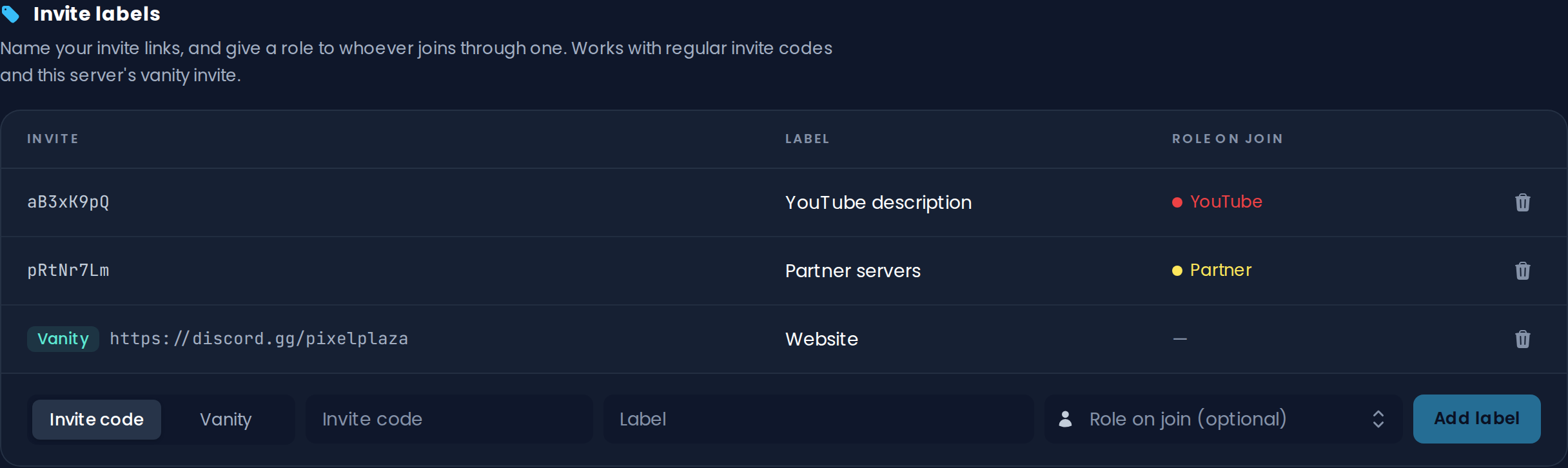
Invite Labels allow you to label specific invite codes, or your server's vanity invite, to track where members are joining from. You can also optionally assign a role that will automatically be given to members when they join using that invite.
Setting Up an Invite Label
Your labels are listed in a table in the Invite labels section (with the Invite, Label and Role on join columns), with the form to add a new one underneath it.
- Choose Invite code for a regular invite, or Vanity for your server's vanity invite
- For an invite code, paste your invite link or code (e.g.,
discord.gg/someinviteor justsomeinvite). For Vanity, your server's vanity invite is filled in automatically - Enter a custom text in Label to identify this invite source
- (Optional) Select a Role on join to automatically assign to members who join via this invite
- Click Add label, then save your changes
Adding a label for an invite that already has one replaces the existing label. To remove a label, click the trash icon on its row.
INFO
The Vanity option is only available when your server has a vanity invite. Otherwise, the form shows "No vanity invite detected".
If your server is discoverable, members who join from Server Discovery count as vanity joins, because they don't use an invite. A vanity label therefore also counts them and gives them its role.
Auto-Role Assignment
When you assign a role to an invite label, any member who joins your server using that specific invite code will automatically receive the selected role. This is useful to recognize members who came from a partner community or a campaign, or to give them access based on where they found your server.
INFO
The auto-role from invite labels is applied in addition to any auto roles configured on the General page.
Only roles Invite Tracker is able to assign are listed: the bot needs the Manage Roles permission and its highest role must be above the role. Roles managed by an integration and the server booster role cannot be assigned.
TIP
You can use the %invite_label% variable for your join, join DM, and leave messages so it will show the label name (or its invite code if no label is set).
Each label can also have a join and a leave message of its own (a Premium feature), sent instead of the regular message to members who joined through its invite. They are configured on the Join messages and Leave messages pages.
You can also search who joined from a specific label by using the /invitedlist command (a Premium feature), which shows when each member joined and when their account was created. The Analytics page also shows your labels next to your top invites.
WARNING
Free servers can only have a maximum of 1 invite label.
Premium servers can have an unlimited amount of invite labels.