
Ticket Panels
Ticket panels are the Discord messages members use to open tickets. Create panels from your server's dashboard by opening Tickets -> Panels.
Before creating a panel, create at least one ticket template.
Creating a Panel
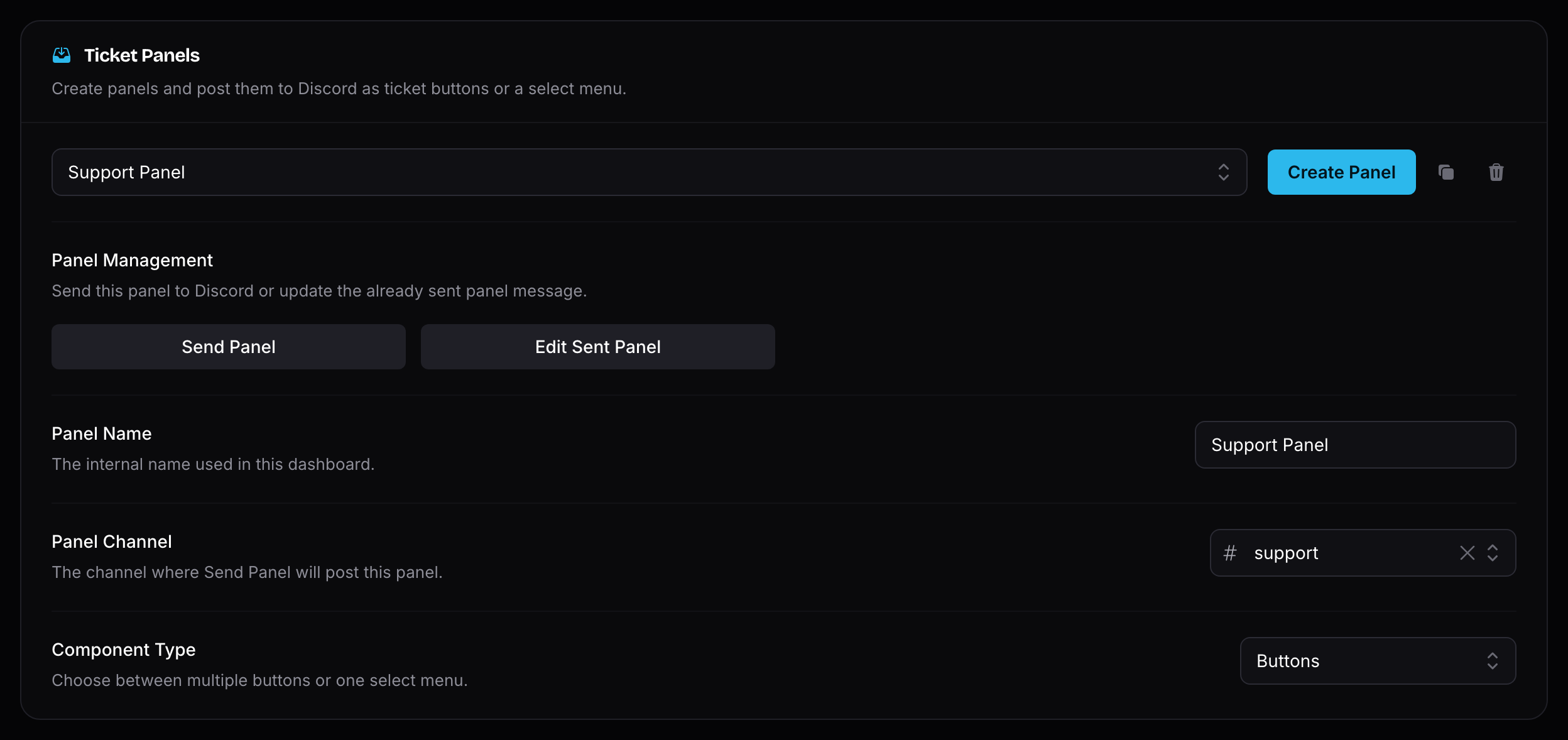
Click Create Panel to create a new panel. A panel must be saved before it can be sent to Discord.
WARNING
Free servers can create up to 3 ticket panels.
Premium servers can create up to 25 ticket panels.
Panel Management
The Panel Management section controls where the panel message is sent and how members choose a ticket type.
- Panel Name is the internal dashboard name.
- Panel Channel is where Send Panel posts the panel message.
- Component Type can be Buttons or Select.
- Select Placeholder is the placeholder text shown when using a select menu.
Click Save before sending a panel. After the panel is saved, click Send Panel to post it in Discord. If you change the panel later, click Edit Sent Panel to update the existing Discord message.
INFO
Ticket limits and the ticket naming counter are configured per template, not per panel. See the ticket template Identity settings.
Template Bindings
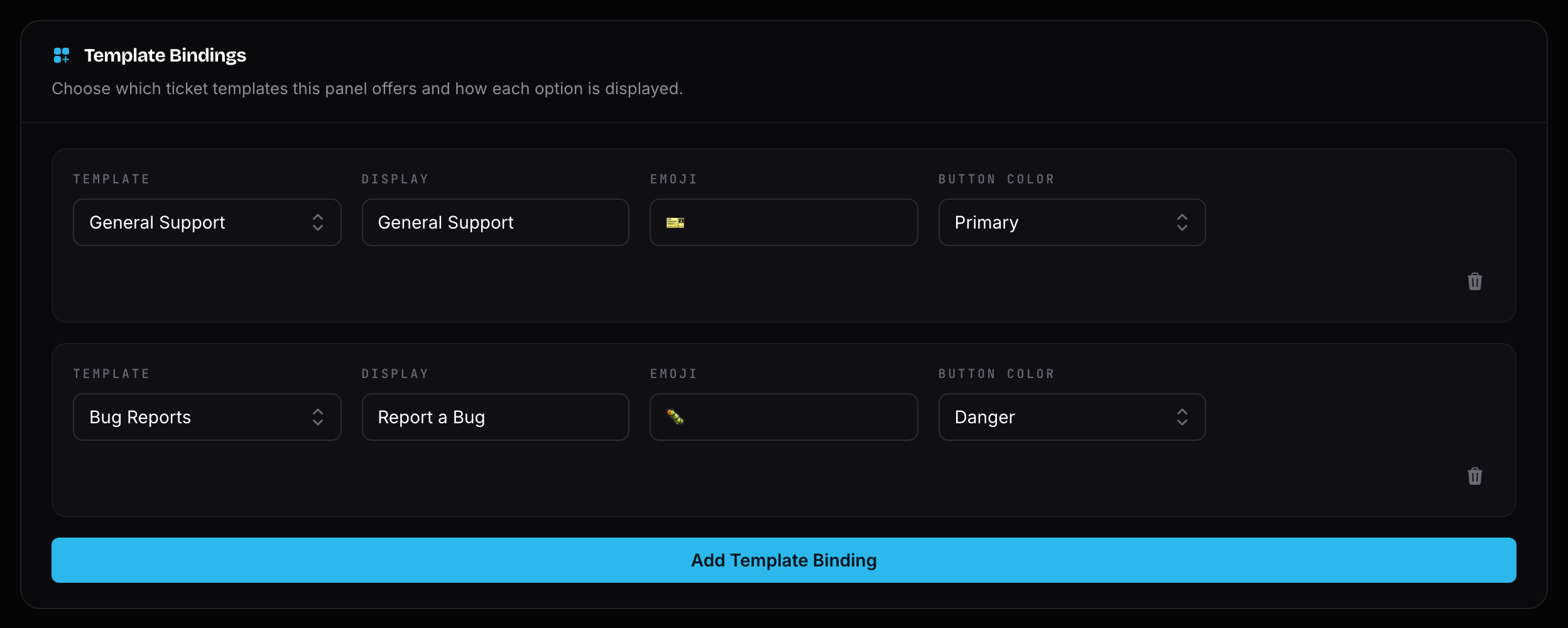
Template bindings decide which ticket options appear on the panel.
Each binding connects one template to one panel option. The Display text is what members see on the button or select menu option, and you can also pick an emoji. With the Buttons component type, each binding additionally has a Button Color; with the Select component type, it instead has a short Description shown under the option.
WARNING
A panel must have at least one template binding, and each template can only be bound once per panel.
Free servers can bind up to 3 ticket options per panel. Premium servers can bind up to 25 ticket options per panel.
Panel Message
The Panel Message section controls the message Invite Tracker sends for the panel. You can use plain text or an embed.
Supported panel variables include {panel.name}, {schedule.timezone}, {bot.avatar}, and {specialchars}.
INFO
Panel embeds on free servers show a "Powered by Invite Tracker" footer and cannot use embed images, thumbnails, or author fields. Premium servers can fully customize the panel embed.
Opening Hours
Premium feature
Panel schedules (opening hours) require Invite Tracker Premium.
Panel schedules are configured in the Opening Hours section. They let you control when regular members can open tickets from a panel.
When Enable Schedule is turned on, choose a timezone and add Weekly Windows entries. Each entry has a day, start time, and end time. If the start time is later than the end time, the schedule continues past midnight into the next day.
Use Schedule Bypass Roles for staff or trusted roles that should still be able to open tickets outside the schedule.
INFO
If scheduling is enabled and no schedule entries are configured, the panel is treated as closed.
If a schedule entry has the same start and end time, that day is treated as open for the full day.